Console Overview
A tour of the GoodMem web console and how to access it
GoodMem Console
The GoodMem console is a web-based interface for managing your GoodMem instance. It launches automatically alongside the server, so there is nothing extra to install.
Accessing the Console
Once the GoodMem server is running, open your browser and navigate to /console/ on your server. The console is served directly by the GoodMem server process — there is nothing extra to install or deploy.
The Sidebar
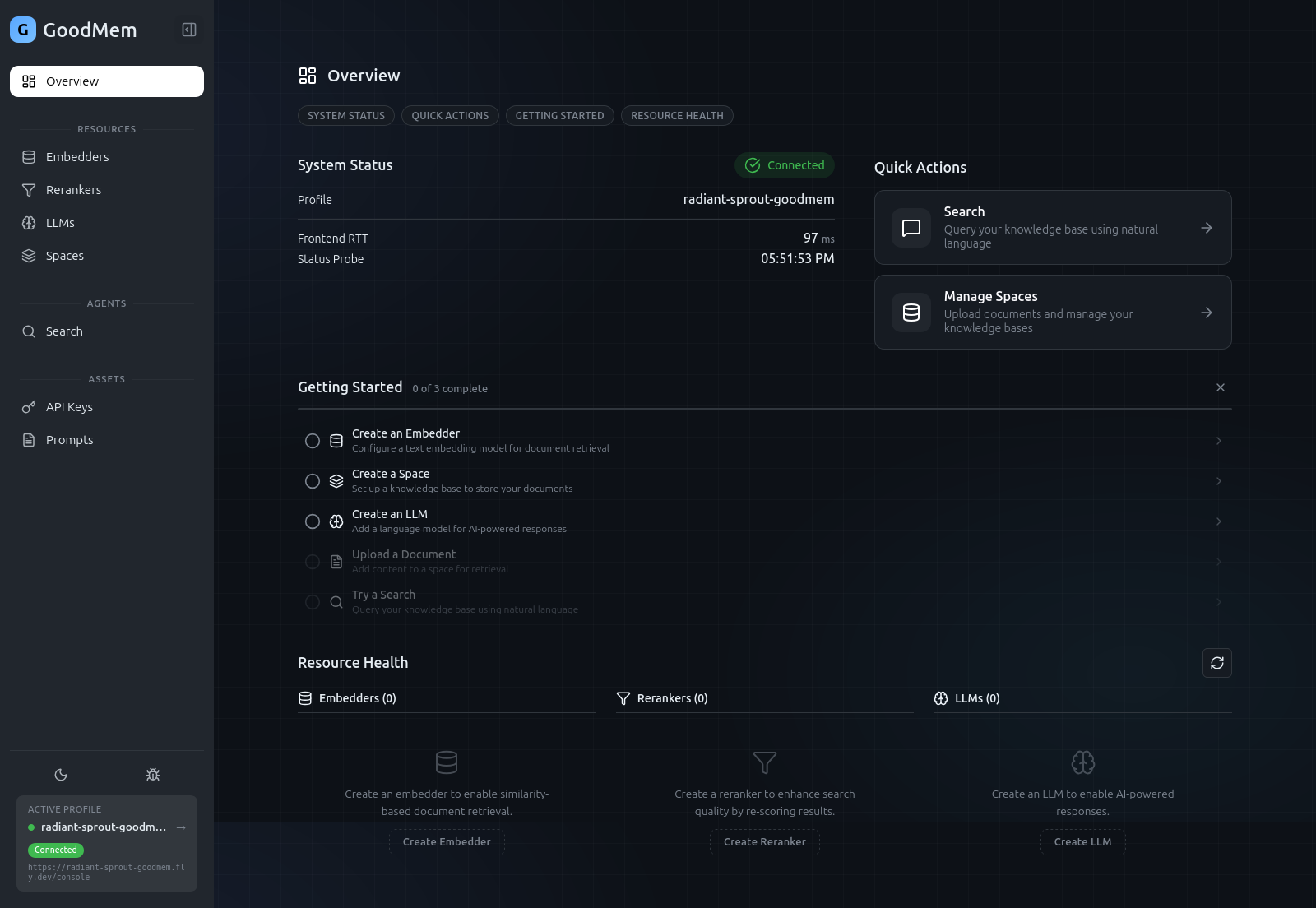
The left-hand sidebar is your primary navigation. It is organized into sections:
| Section | What it contains |
|---|---|
| Overview | System health, resource counts, and a Getting Started checklist |
| Embedders | Register and manage embedding models |
| Rerankers | Register and manage reranking models |
| LLMs | Register and manage large language models |
| Spaces | Create knowledge bases and upload documents |
| Search | Query your knowledge bases with natural language |
Getting Started Checklist
When you first open the console, the Overview page shows a Getting Started checklist that walks you through the essential setup steps:
- Create an Embedder
- Create a Space
- Create an LLM
- Upload a Document
- Try a Search
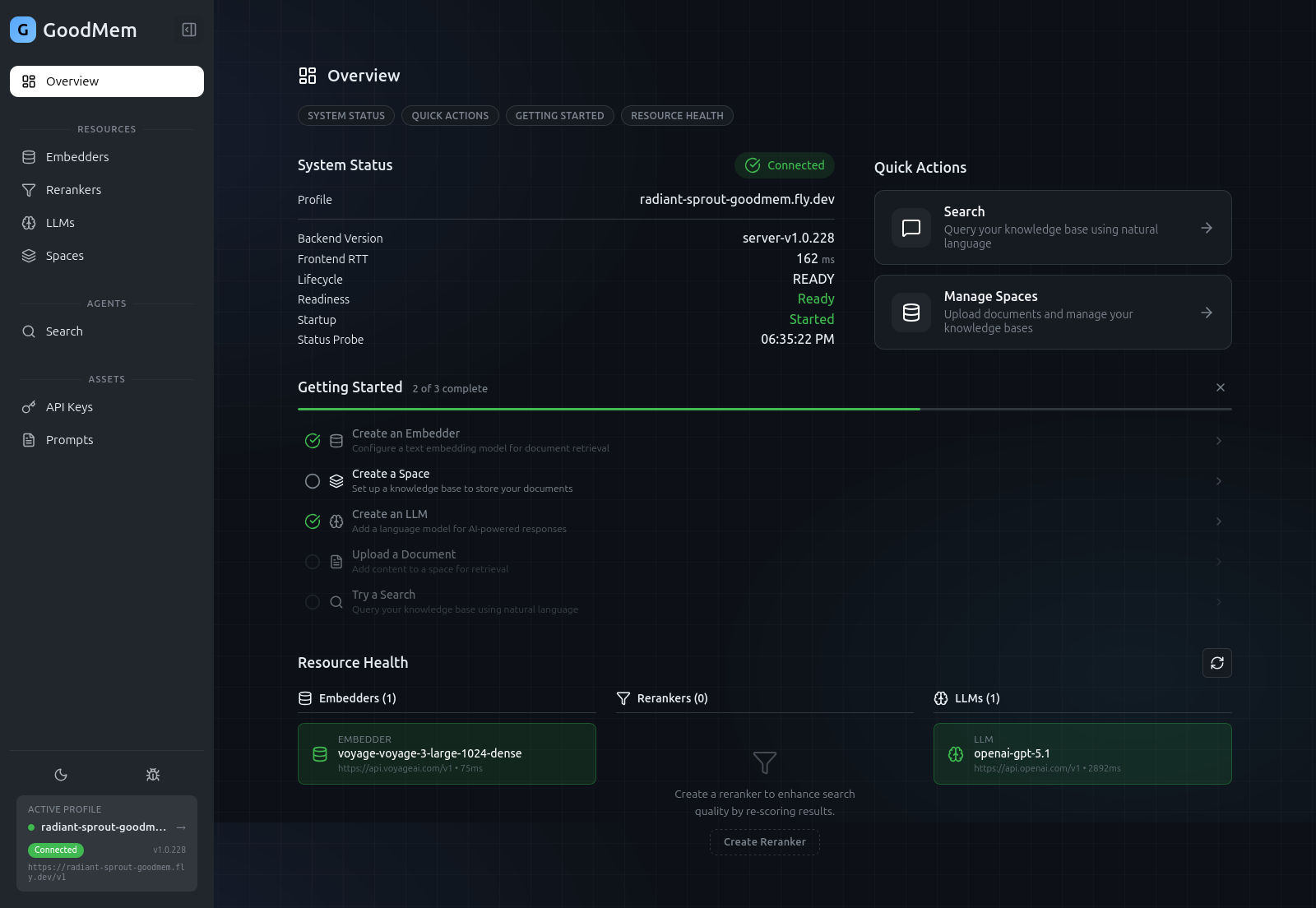
Steps 1 through 3 are checked off automatically as you create each resource. Once all three are complete, the checklist hides itself. You can also dismiss it at any time with the X button.
System Health
The Overview page displays the connection status of your server, including:
- Backend version and lifecycle state
- Frontend round-trip time to the server
- Resource health for each registered embedder, reranker, and LLM, with per-resource latency and status indicators
Next Steps
- Managing Resources — register embedders, LLMs, and rerankers
- Spaces & Documents — create spaces and upload content
- Search — query your knowledge base
- Debug Mode — inspect the API calls the console makes