Managing Resources
Create, edit, and monitor embedders, LLMs, and rerankers from the console
Managing Resources
Embedders, LLMs, and rerankers are the building blocks of a GoodMem deployment. The console provides a consistent interface for managing all three — creating, editing, deleting, and checking health.
Shared Workflow
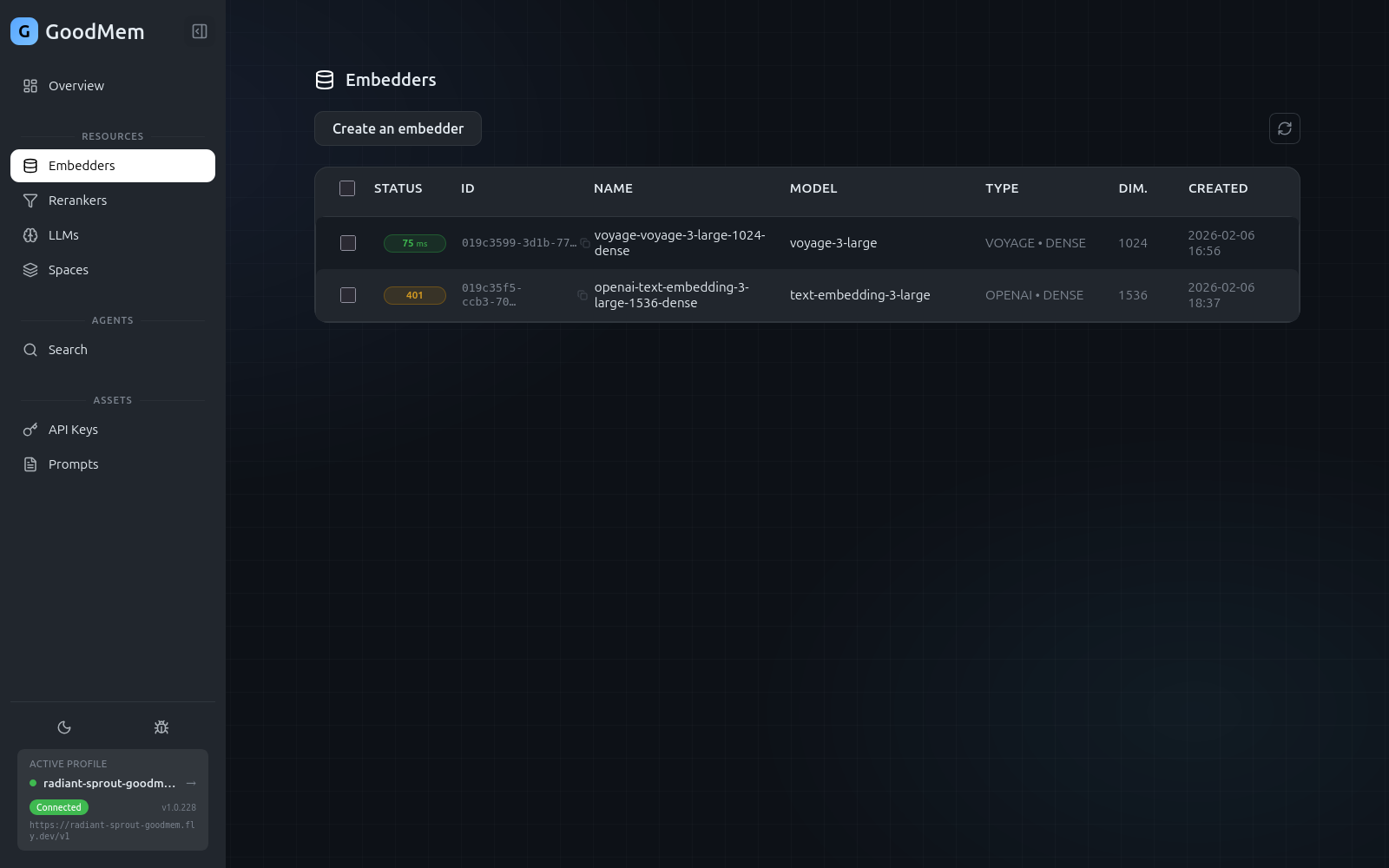
Every resource type follows the same pattern:
- List view — a table showing all registered resources with health status badges.
- Create — click the create button, fill in the form, and submit.
- Edit — select a resource and modify its configuration.
- Delete — select one or more resources and delete them.
- Health check — ping an individual resource or all resources at once to verify connectivity.
Creating a Resource
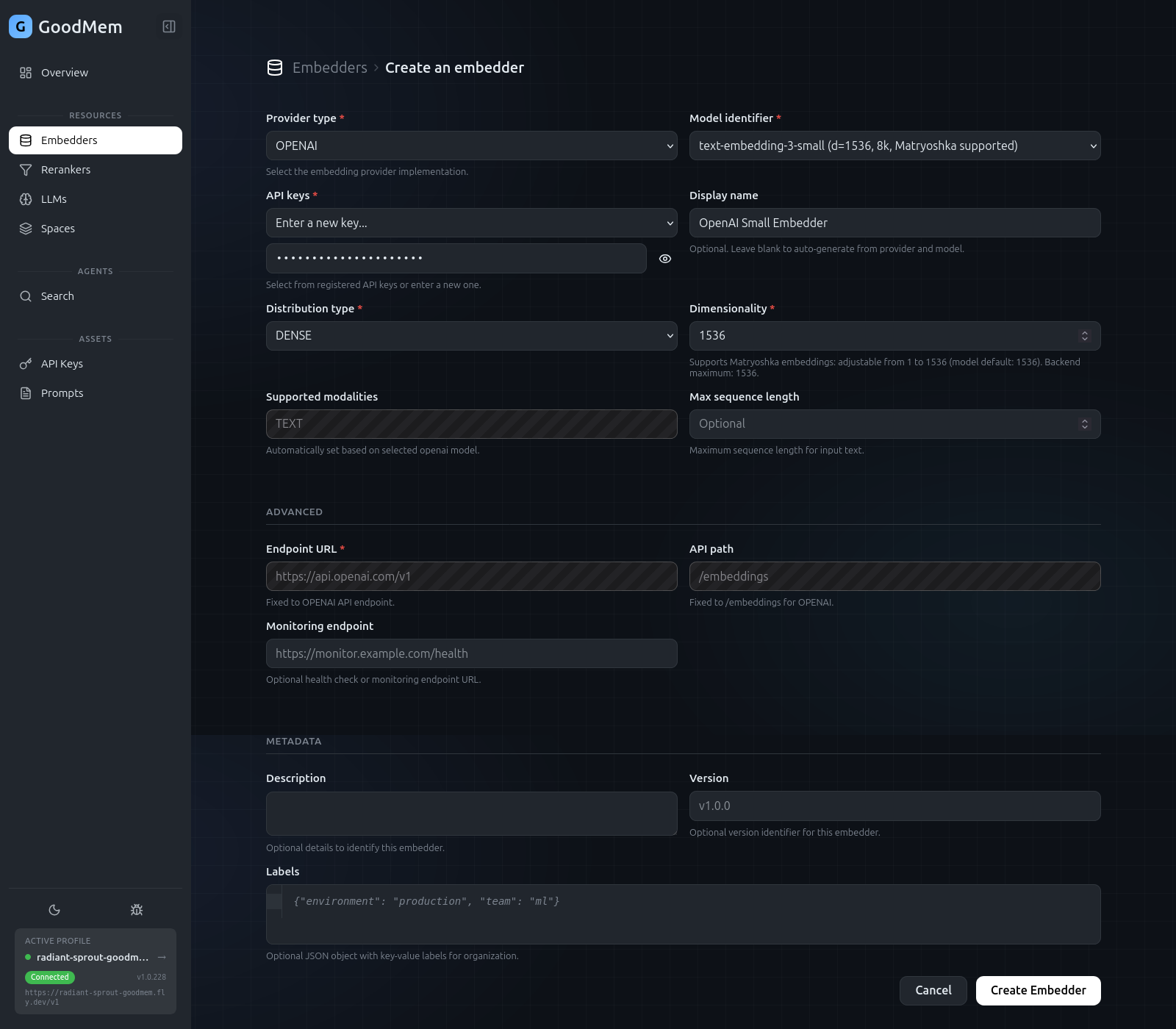
Each resource type has a create form with fields specific to that resource. The common fields across all three are:
| Field | Description |
|---|---|
| Display name | A human-readable name for the resource |
| Provider type | The backend provider (e.g., OpenAI, vLLM, TEI, Jina) |
| Endpoint URL | The URL where the provider's API is reachable |
| Model identifier | The specific model to use (e.g., text-embedding-3-small) |
| Credentials | An API key for authenticating with the provider |
Embedders
Embedders convert text into vector representations. In addition to the common fields, embedder forms include:
- Dimensionality — the number of dimensions in the output vector (e.g., 1536 for OpenAI
text-embedding-3-small). - Distribution type — Dense or Sparse.
LLMs
LLMs power the AI-generated summaries in search results. LLM forms include additional capability toggles:
- Supports chat / completion / streaming — flags that describe what the model can do.
- Sampling parameters — temperature, top-p, max tokens, and other generation settings.
Rerankers
Rerankers re-score search results to improve relevance. Their forms are the simplest of the three — typically just the common fields listed above.
Health Checks
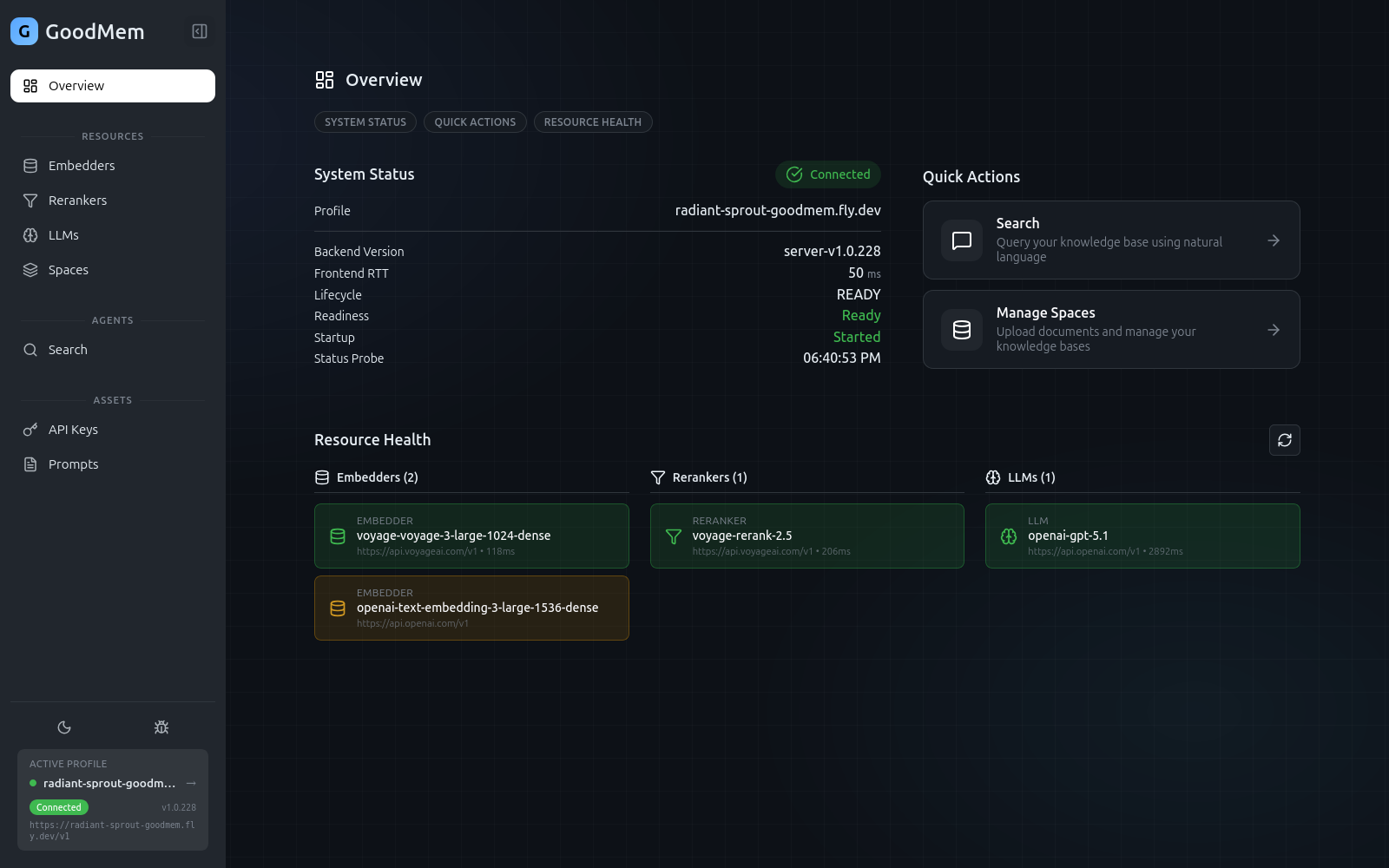
Each resource in the list view shows a colored status badge:
| Badge | Meaning |
|---|---|
| Green | Healthy — the provider responded successfully |
| Orange | Auth error — the provider rejected the credentials |
| Red | Unreachable — the provider did not respond |
| Pulsing | Checking — a health probe is in progress |
Click the refresh button in the Resource Health section of the Overview page to re-probe all resources at once. You can also navigate to a specific resource and ping it individually.
Bulk Operations
Select multiple resources using the checkboxes in the list view, then use the toolbar to delete them in a single action. A confirmation dialog appears before anything is removed.