Spaces & Documents
Create knowledge bases, configure chunking, and upload documents
Spaces & Documents
A space is a knowledge base in GoodMem. You upload documents into a space, and GoodMem automatically chunks, embeds, and indexes them for retrieval.
Creating a Space
- Navigate to Spaces in the sidebar.
- Click the Create button.
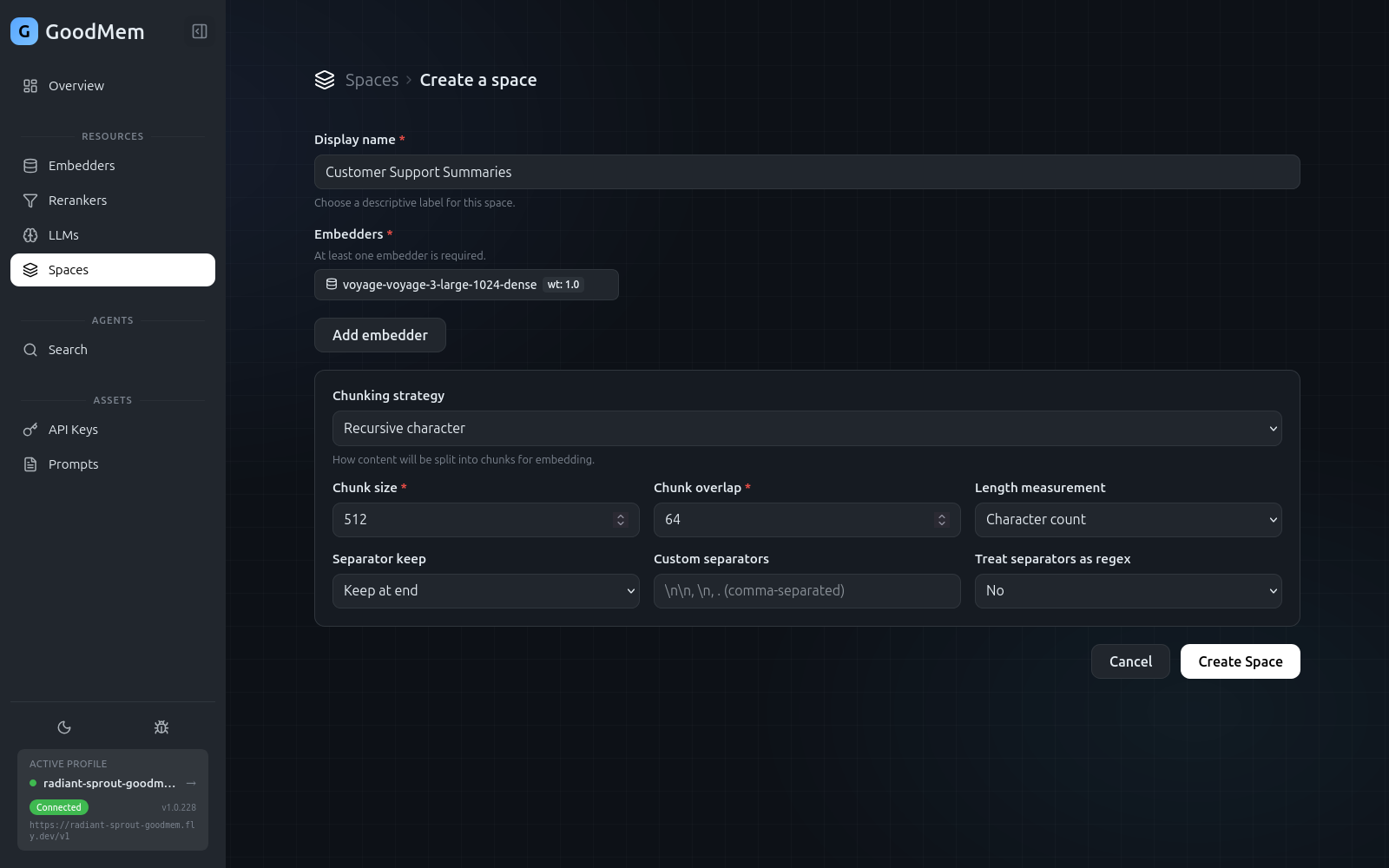
- Fill in the form:
| Field | Description |
|---|---|
| Name | A descriptive name for the space |
| Embedders | Select one or more embedders to use for this space. Each embedder gets a retrieval weight. |
| Chunking strategy | How documents are split into smaller pieces for embedding (see below) |
| Public read | Whether the space is readable without ownership |
- Click Submit.
Chunking Strategies
Chunking controls how uploaded documents are broken into smaller segments before embedding. The available strategies are:
| Strategy | Best for |
|---|---|
| None | Short texts that should be embedded as a single piece |
| Recursive | General-purpose splitting that respects paragraph and sentence boundaries. Configure chunk size and overlap. |
| Sentence | Splits strictly on sentence boundaries |
When using Recursive or Sentence chunking, you can configure:
- Chunk size — the target size of each chunk (in characters or tokens).
- Chunk overlap — how much adjacent chunks overlap, which helps preserve context across chunk boundaries.
Uploading Documents
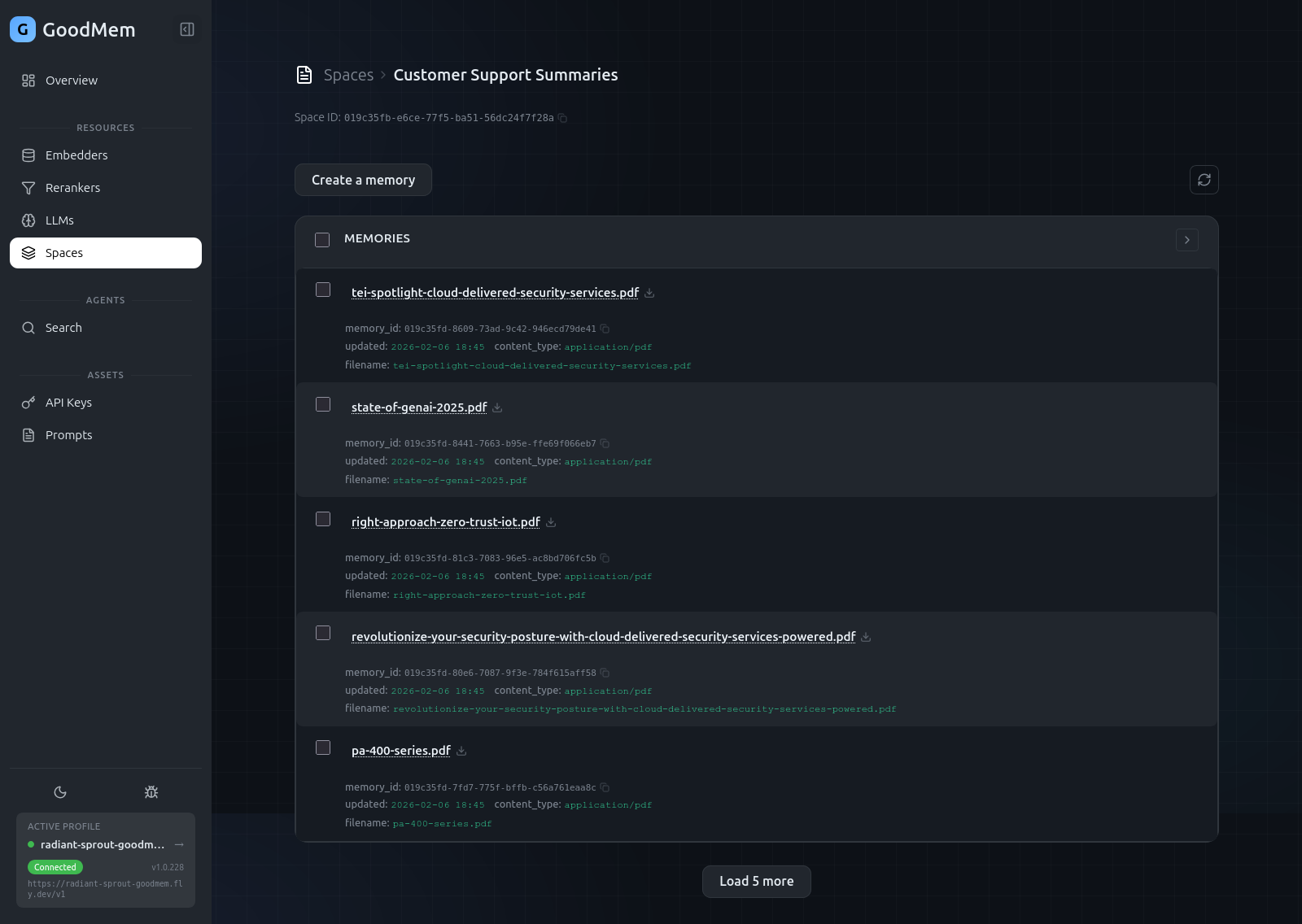
Once a space exists, click into it to see its Memories view. This is where you upload content.
From a File
- Click Create.
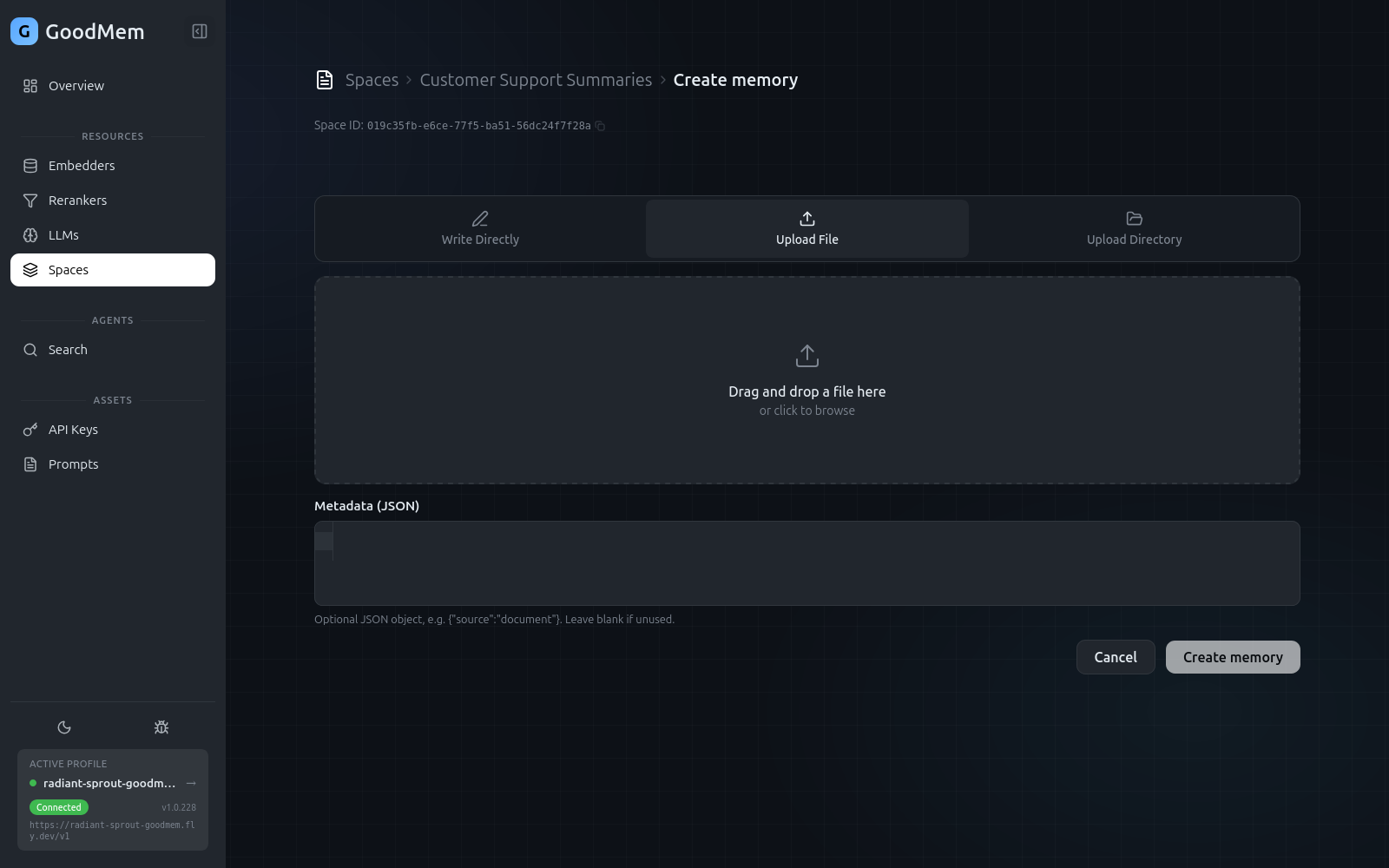
- Choose File upload.
- Drag and drop files into the upload area, or click to browse. Supported formats include PDF, TXT, DOCX, and PPTX.
- Optionally add metadata key-value pairs.
- Click Submit.
Multiple files can be uploaded at once. Each file becomes a separate memory, and GoodMem processes them in the background.
From Text
- Click Create.
- Choose Text input.
- Paste or type your content.
- Optionally add metadata.
- Click Submit.
Monitoring Ingestion
After uploading, each memory shows a processing status:
| Status | Meaning |
|---|---|
| Pending | Queued for processing |
| Processing | Being chunked and embedded |
| Completed | Ready for search |
| Failed | Something went wrong — check the error details |
The status updates in real time. Large files may take a moment to process, especially if the embedder is remote.
Viewing Memory Content
Click on any memory in the list to open a content viewer. This shows the full text of the document along with its metadata. For files that were uploaded as PDFs or other binary formats, the viewer shows the extracted text.
Editing a Space
Select a space and click Edit to modify its name, embedder associations, chunking configuration, or public-read setting. Changes apply to future uploads — existing memories are not re-processed automatically.
Deleting
You can delete individual memories or entire spaces. Deleting a space removes all of its memories. Both actions require confirmation.